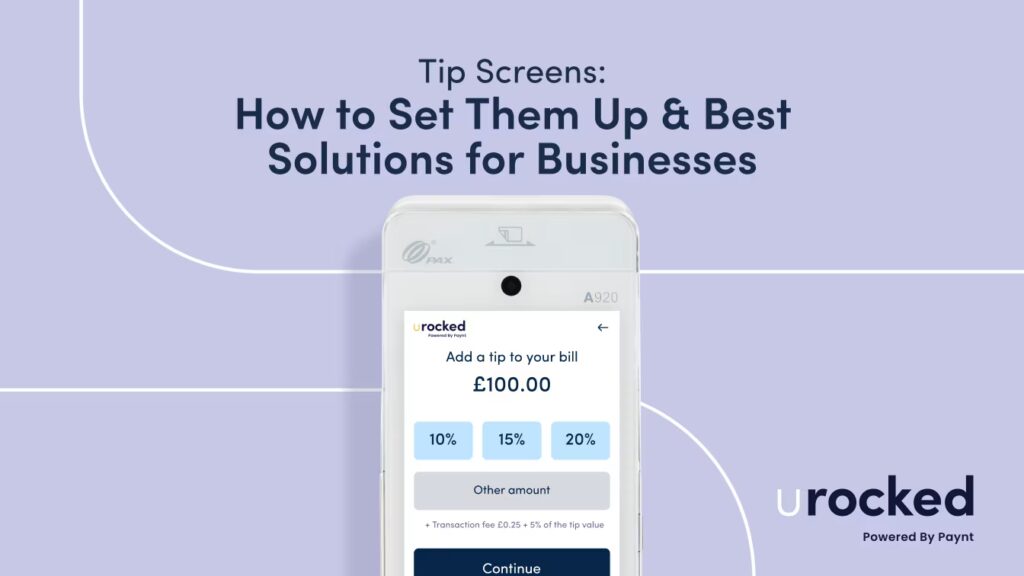
Tip screens have become popular in the service industry in businesses such as restaurants, cafés, delivery services, and retail environments where tipping is customary. Tip screens typically displays preset tip options such as 10%, 15%, and 20%, alongside a “custom amount” or “no tip” button, offering flexible and transparent options for customers. These screens help enable customers to add tips to their purchase without the use of cash. Businesses can enable and customise this feature through their payment service provider’s system settings or by using mobile solutions such as SoftPOS or QR code-based interfaces.
URocked’s OneDevice and mobile Tipping App provide compliant and automated tip-screen solutions for businesses under the Employment (Allocation of Tips) Act 2023. The system integrates directly with card machines, routes 100% of tips to staff accounts, supports team or individual tipping, and provides transparent, real-time reporting for tax and compliance. Merchants can add staff photos linking profiles with payment terminals for individual staff tips.
In this article we discuss how users can add a tip screen on payment terminals and phones, the best solutions for businesses, how to add tip pictures for staff and the most common tip percentages on tip screens.
A Tip Screen is a digital interface displayed on a payment terminal that prompts customers to add a tip to their purchase. Tip screens help enable customers to add tips to their purchase without the use of cash. This screen appears immediately after the total amount is entered and before the card payment stage. Customers are presented with predefined percentage choices such as 10%, 15%, and 20%, ‘custom amount’ options, or a ‘no-tip’ selection.
The Tip Screen is found on card machines and point-of-sale (POS) terminals in restaurants, cafés, delivery services, and retail environments where tipping is customary. These screens are not a mandatory part of the payment process, and customers retain the option to select “no tip” or skip this step entirely. Tip screens have become popular in the service industry as card payments have replaced cash as the dominant payment method, necessitating digital alternatives for cash tips. Businesses have the option to customise the pre-set tip percentages as well as disable tip screens entirely from the payment process of their POS terminals.
To add a ‘Leave a Tip’ Screen businesses need to register with a payment service provider such as Paynt and enable the tipping functionality. For businesses this involves configuring the tip options to enable them for use on all point-of-sale terminals alongside capturing payments for goods and services. To add a ‘Leave a Tip’ Screen, follow the six steps below:
1. Choose Your Service Provider: Choose a payment service provider that offers the tipping feature with their Point-of-Sale terminals. Check they are fully compliant with the Employment (Allocation of Tips) Act 2023.
2. Access System Settings: Log into the POS administrative or back-office system using authorised credentials to access the configuration interface where payment and gratuity settings are managed.
3. Locate the Tipping Feature: Navigate to the payments or gratuity menu within the system settings, which is typically found under transaction settings, customer-facing display options, or checkout configuration.
4. Enable the Feature and Display: Activate the Tip Screen toggle to ensure the tip prompt appears on the payment terminal immediately after the transaction total is entered and before the final payment confirmation stage.
5. Customise Tip Options: Set predefined tip percentages such as 10%, 15%, or 20%. Enable a custom input field and a “no tip” option to provide customers with flexible choices.
6. Save and Deploy: Save the configuration changes and deploy the updated settings to all connected payment terminals, ensuring the Tip Screen appears consistently across all devices in use.
To add a Tip Screen on a phone, follow the five steps below:
1. Choose Your Tipping Method: Determine whether you will use your phone as a payment terminal using the SoftPOS/mPOS method or using the QR code method prompting customers to redirect to a secure payment page.
2. Download or Register for the Service: Download the URocked Tipping App or a certified mobile point-of-sale application such as Paynt onto an NFC-enabled smartphone. Register for the tipping platform by creating a merchant account and linking a payment account to receive tips.
3. Access Configuration Settings: Open the app and navigate to the administrative or profile menu to locate the tipping settings.
4. Enable and Customise the Tip Screen: Activate the tipping function and configure the default preset tip percentages such as 10%, 15%, and 20% to appear on the customer-facing screen during payment. For the QR code method, generate a unique QR code.
5. Deploy the Tip Screen: Ensure the Tip Screen displays before the final transaction confirmation on your phone terminal. For the QR code method, print or display the QR code on a stand, receipt, table card, or digital screen, allowing customers to scan it with their own smartphone.
The best solution to Add a Tip Screen is URocked’s OneDevice, where businesses can accept the tip & bill in one go with a fully compliant, transparent, and efficient tipping system ensuring 100% of tips go directly to staff. Add a Tip screens are automatically set up on the Point-of-Sale terminal with tip options customisable by the business. Digital tips and the bill captured are automatically distributed to staff and recorded for tax and compliance purposes.
Features that make URocked the Best Solution to Add a Tip Screen are discussed below:
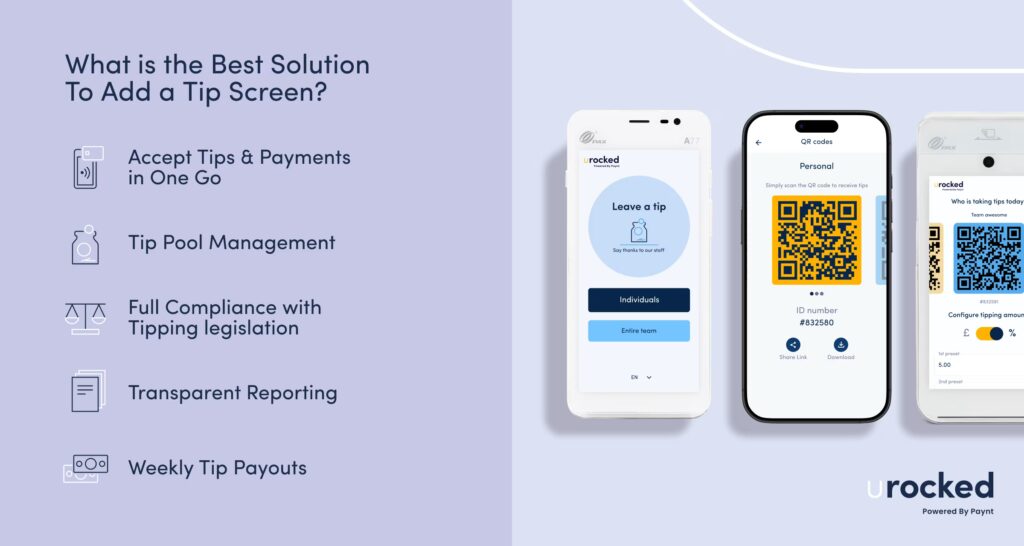
The best ‘Leave a Tip’ Screen app is URocked’s members tipping app, which enables businesses to add compliant QR code interfaces, allowing customers to leave gratuities digitally using their own smartphones. Staff can monitor their tip earnings in real-time through the mobile app, view individual transactions, and track both personal tips and pooled tips distributed among team members. The app provides a modern, contactless tipping method whilst ensuring employees receive 100% of tips directly and transparently.
Features that make URocked the Best ‘Leave a Tip’ Screen App:
To add a picture for staff members to the URocked-enabled card machine or POS terminal, allowing customers to identify and tip staff directly, follow the five steps below:
1. Download URocked’s Members Tipping App: Download the URocked Members Tipping App from the Apple App Store or Google Play Store onto your mobile device. This application enables individual staff members to create profiles and manage their tipping accounts independently.
2. Create Your Profile & Upload Your Picture: Create your personal URocked account by providing your details. Upload your staff photo to your profile within the app. This image will display to customers on the tipping screen, allowing them to identify and tip you directly during transactions.
3. Create a Team Within the App: As a merchant navigate to the ‘Team tips’ section and create a new team for your business or location. Creating a team establishes a shared tipping structure where all team tips received go into a collective pot that can be split.
4. Add Team Members to Team Tips: Select your newly created team within the ‘Team tips’ section and choose ‘Team members’ to view the current member list. Click the yellow ‘Add member’ button to add staff members to the team.
5. Select Team & Enable Multi-Staff Tipping: Choose the team you created in the URocked app from the available options and enable the multi-staff tipping feature. This links the team members’ profiles and photos to the physical card machine, making their images visible to customers during the tipping process on the payment screen.
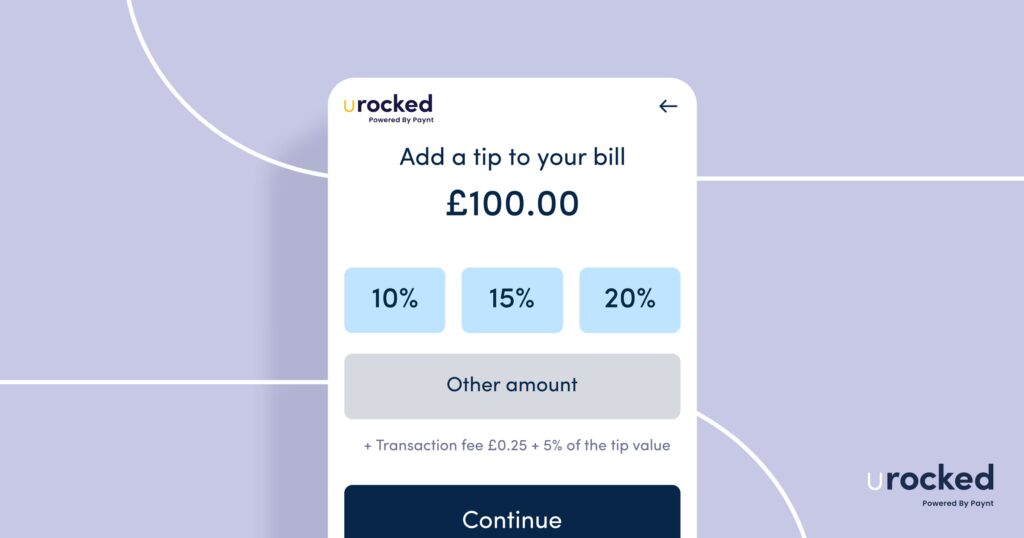
The common Tip Screen options are pre-set percentage buttons such as 10%, 15% and 20%, a “custom amount” option, and a “no tip” or “decline” button. These button options appear on the interactive display interface on a card machine or POS system that presents customers with digital options for adding a gratuity to their bill.
The pre-set percentage buttons represent the quickest method for selecting a tip amount. These pre-set percentage buttons, when pressed, automatically calculates the total transaction by adding the pre-select tip percentage of the initial bill for goods or services. The ‘Custom Amount’ entry provides a manual input field allowing customers to specify any whole value they prefer, such as £2.00 or £5.50. This option accommodates customers who favour fixed monetary tips rather than percentage-based calculations, particularly for smaller transactions where percentage amounts may seem disproportionate.
The ‘No Tip’ or ‘Decline’ Option enables customers to bypass the gratuity selection entirely and proceed with the base payment total only. This option ensures the tipping process remains discretionary rather than obligatory, maintaining transparency and preventing customer discomfort.
A good percentage to ask for on a tip screen is between 10% to 20%. The most common tip percentage options in the UK is 10%, 15% and 20%. Tipping in the UK is entirely voluntary and customers have the right to pay no tip. When asking for a tip customers are likely to pay tips for good service, attention to detail during their visit and good overall experience. Restaurants in the UK typically charge a discretionary service charge which is an optional fee automatically added to a customers bill, typically set at 12.5%.
Quick-service environments, including coffee shops, fast-food establishments, and counter-service venues, typically do not request a tip percentage on a tip screen due to the lack of customer service and customer interaction.
To request tips using a Tip Screen during a customer transaction, follow the six steps below:
1. Finalise the Transaction: Complete the order entry in the POS system by adding all purchased items or services. Verify the total bill amount displays correctly before proceeding to the payment stage.
2. Initiate Card Payment: This action transmits the transaction total to the connected payment terminal and begins the customer-facing payment sequence.
3. Tip Screen Activation: The payment terminal automatically displays the Tip Screen to the customer before requesting card insertion or contactless payment. This automated prompt presents the pre-configured percentage options, custom amount field, and no-tip selection without requiring additional staff input.
4. Customer Completes Tip Selection: The customer reviews the displayed options and selects their preferred gratuity choice by tapping the screen. The selected tip amount adds to the transaction total instantly, updating the payment value.
5. Give Privacy: Give customers privacy to select the tip amount and make the final payment by looking away from the payment terminal
6. Final Payment & Receipt: The terminal proceeds to collect payment for the combined bill total plus the selected tip amount. The system processes the complete transaction and generates a receipt showing the itemised bill, tip amount, and final total for the customer’s records.
The etiquette around tip screens is a combination of voluntary choice and discretion for customers rather than a mandatory obligation. Customers should feel no social pressure to select any particular option, and using the ‘No Tip’ or ‘0%’ selection is perfectly acceptable without awkwardness or explanation.
Business and staff etiquette requires transparency and customer privacy when the option to tip is provided. The card machine or Tip Screen should be positioned to face the customer directly, allowing them to view options and make selections privately without staff observation or proximity that might create perceived pressure. Staff members should step back or redirect their attention elsewhere whilst the customer interacts with the screen, maintaining respectful distance. The decline option must appear equally prominent to percentage selections, ensuring customers recognise their freedom to bypass tipping entirely.
Yes, tipping screens can create pressure to tip due to pre-defined tip amounts and social pressure. Pre-set tip percentage buttons such as 10%, 15%, and 20% function as high anchors, with the ‘No Tip’ or ‘Custom Amount’ options appearing less prominently creating pressure to tip. Businesses can mitigate this pressure by providing a ‘No Tip’ or ‘Custom Amount’ prominently on the interface design. Positioning the payment terminal to face exclusively towards the customer whilst staff step back or redirect their attention elsewhere can help reduce social pressure.
Yes, tip screens are effective at increasing tips. The frequency and average value of tips are increased as customers are provided with the option to tip 10%, 15% and 20% of the total cost of goods. Tip screens are effective at increasing service workers earnings from tips with earnings from tips increasing by 42% between March 2020 to May 2023 according to the ‘The Latest Tipping Trends in the SMB Economy’ by Gusto. Digital systems provide transparency through real-time tracking of individual staff earnings, eliminating disputes over cash tip distribution. With the introduction of the Employment (Allocation of Tips) Act 2023, which mandates fair tip distribution to workers, tip screens reduce administrative burden whilst ensuring regulatory compliance.

Welcome to the URocked movement
Where cashless tipping meets legal ease and transparency!